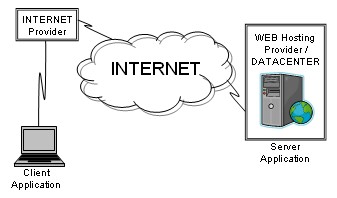
The WEB Conferencing technology is extremely reliable but you could have difficulties sometimes. I think it would be fair to say the majority of those difficulties, if they happen, would be during the initial implementation and familiarity period. The purpose of this article is to discuss possible issues and the suggested steps to diagnose and quickly correct those issues. Before we do this I will briefly describe the architecture of the environment.
This is a picture of the environment.
At your end there is a connection from your computer to your Internet Provider. This would be a modem - a device to convert digital signals to/from a format usable by telephone, cable, satellite and etcetera systems - connected to the providers service. Your provider will be connected to the Internet. At the other end is a computer serving as a Web Server. This computer could be connected via an Internet Provider to Internet or it could reside with a Web Hosting Provider who provide the datacenter services and the connection to the Internet. There are literally millions and Web Severs, mostly using the services of Web Hosting Providers to provide many terabytes (lots) of information. You would typically use Browser technology to access this information. The Internet consists of millions of networks. When you connect to any Web Server from your computer you may actually use several or many of these networks.
When you use the Internet there are millions of individual software and hardware components. Each one of those components must work perfectly with each other for you to successfully use the Internet. Also no one person or organization has jurisdiction over the entire Internet. It is possible therefore, and it does happen, that one of those networks does not perform well. This will impact everybody who's connection path includes that network. You have no control over the connection path that was selected. Hopefully your Internet Provider and the Hosting Providers are monitoring their services and have some influence and persuasive approaches to encourage poor performing participants to "fix" problems. The environment is very complex however.
The Web Conferencing technology you will using is what we call Client/Server technology. It includes a small application running on your computer that will connect directly to the server application running on the Web Server in the datacenter. Therefore you must download and install the small application before you can use this service. An important point to note is that when you are not using this technology you are not using the services of Browser technology. The Browser - Internet Explorer, FireFox and etcetera - are used to launch the application on your computer, but when launched the Browser is no longer required.
Every one of you will use virus detection technology and firewalls. They are used to solve different problems and therefore I will offer a brief overview of their role and purpose. Life would be much simpler if we didn't need to use these tools but there are "bad" folk who aim to hurt and inconvenience as many individuals as they can. I call them Internet Terrorists. Many of you may remember how simple it was to fly from A to B twenty five years ago or even before 9/11. Today it is a total nightmare and the tools used to protect us can also inconvenience us. For example, a year so ago my daughter was travelling from Canada to Seattle to attend a conference. She obviously answered some of the immigration officer's questions poorly and was labeled as a potential risk. Since then, when she tries to clear US immigration, she is always taken to the back room and interrogated. On many occasions she has almost missed connecting flights. That issue has be cleared but it took time and a lot of pain. My uncle and aunt were visiting the US from Australia in September 2001. They were in Alaska on 9/11. When air travel resumed they were interrogated on every single flight they took through the US. After this happened several times my uncle demanded to know why. The reason, all their flights were one-way flights. They had no return flights in their schedule. The tools being used were necessary in both cases but they also inconvenienced both my daughter and my uncle and aunt. The same is true with the tools we use to protect our computers. They are necessary but sometimes they are the cause of extreme frustration. Most of this frustration is likely due to the fact that most of us don't really know what these tools to, and we rarely need to configure them, and don't know what to do when we have to.
To me a virus and spyware are one and the same thing. Technically I guess a virus tends to be more damaging. A common term is malware. Malware is any item that has been installed on your computer without your permission. They can be introduced in many ways. A common approach is a Trojan Horse - disguised as something harmless but inside very undesirables. Most new malware detection tools have two functions. One function is to detect the possible infestation before it happens - i.e. while reading an email that contains malware - and the second is to scan the files on the computer for possible malware. There programs have a signature, some identifying chrematistic, for possible malware. Since new malware is being introduced every day it is important for the signature files to be updated frequently. Unfortunately a single program will not necessarily detect all malware and it may be necessary to use more than one tool.
| Connection Type TCP (client to server) |
| Server Port 443 |
| Server Address Same as room login page |
| Protocol Non-SSL over port 443 |
| Proxy Uses proxy settings from Internet Explorer (ignore for now) |
| Application Path c:\program files\TC Web Conferencing/WebConferencePlugin.exe |
Windows, contrary to popular belief Windows' system files can become corrupted. There are tools to check for and correct these issues.
Download Accelerators are used to improve the performance of downloading, and sometimes uploading, files from the web. They are most beneficial with slower Internet connections. However, because of the way they operate, they will cause problems with applications requiring timely responses. The Web Conference application is such an application. All download acceleratora should be disabled. You need to contact your Internet Provided to disable accelerators thay have activated. A download accelerator is something like the following scenario; You write a note to Bill on Monday. On Tuesday you do the same thing and repeat this process every day. After you write the note on Sunday you place them all in an envelope, address the envelope to Bill and mail it. This is very efficient and offers considerable cost savings. But, if the note written on Tuesday required an immediate response, all the efficiencies and cost savings would have no benefit.
After the previous somewhat lengthy discussion it is time to look at some of the issues. This discussion focuses on the Windows interface using the downloaded software. This software is only available for Windows. There is another interface with less function that does not require the downloaded software. That interface is not discussed in this article. Any tools used will be with Windows XP. There may be slight dufference with other Windows systems.
Most of the time you will be able to log into the Conference Room without any problems, especially if you followed the instructions to download and install the plugin and if, when prompted by your firewall software, you chose the option to "Always Allow ..." (or similar intent). If that is not the case the following discussion will help you work through some of the issues you may encounter.
This is the simplest problem to resolve. It usually means the downloaded software (plugin) has not been installed, or not correctly installed, or you have removed the software from your computer. To correct download and install the software. Make sure you download and install the software and not just download it. Choosing "Run" with Internet Explorer will do that automatically. If you use FireFox or "Save" with IE you need to find the saved file and run it.
This first thing I recommend is to download and re-install the application (the plugin) and try to login again. This usually is not the problem but it will ensure you do have the latest version installed. You only need to do this once.
Next we will do a "ping" test. This is a network diagnostic tool to send a small message (4 in fact) to a remote computer (the web server in this case) and the remote computer will reply with 4 messages.
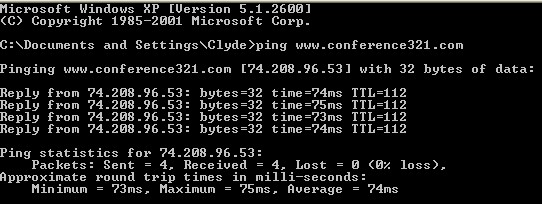
If instead you see a "Request timed out" or "..could not find host ..." message you have a problem that must be resolved. There is no point going any further. There are several possible causes for this problem: a) the server is not running, b) it is blocked or c) there is an Internet problem. Point "a" is simple to determine. If other users can successfully log in to the webinar, that is not the problem. See the "caution" note below. For "b" you need to check all your firewalls - local and corporate to make sure www.conference321.com or IP address for that domain name (IP address will be displayed with the ping output) is not blocked for outgoing or incoming traffic. You may be unfamiliar doing this and you may need some help. You could also temporally disable the firewalls. After doing that you could try the ping and if successful you have identified that it is blocked. Some firewalls permit disabling the firewall for specific duration. For a firewall running on your computer you can direct Windows not to start it when your power up. 1) click Start, 2) click Run, 3) type msconfig into the text field and press OK, 4) click Startup and unselect the firewall(s) and rebook. Test using ping. Don't forget to repeat the previous steps and select the firewalls you disabled and reboot your computer to enable your firewall protection.
If you get to this point and you are still unable to obtain to ping www.conference321.com there is likely an Internet issue some where. You should contact your Internet Provider's Technical Support. Before you do start a browser and see if you load a web page. If you can't it would appear you have a networking problem on your computer. If you haven't done so, reboot and try again.
Caution: www.conference321.com is the most likely server you will use. But there are other servers providing the same service. Therefore a successful ping test will indicate you do not have a firewall problem at this level but it may not indicate you can access the server you need to use. If you use the "http://www.conference321.com/masteradmin ..." URL to login, the value specified after the "http://" will identify the server you will use. Replace all reference to "www.confreence321.com" in this discussion to that value. If you are using a custom login script or a link on a web page you will need to speak with someone who if familiar with that implementation to determine the correct server to test.
Assuming the ping test was successful we will now use the telnet application. This application is used to login to remote servers. You will not be able to login because you do not have the user name and password but you will be able to get to the place where the application is waiting for this information.
The message "Connecting to ...." may be seen - it will display very briefly - and you will see a completely blank screen. At this point telnet is waiting for you to provide the user name and password. That is sufficient to indicate this test was successful and you should be able to log into the Web Conference Room. If you see the message "Connect failed: as in the following diagram this test was not successul, indicating there is a firewall blocking the outgoing or incoming traffic. You will have to check your firewall settings to remove the block before you can continue.

You are at the point where the previous tests were successful but you still can't login to the room. You should verify you are not using any download or web accelerators. Contact your Internet Provider. If they have enabled accelerators have them disable them. Disable any accelerators you may have installed.
For 99.xx% of the time you would be able to login to the room.
If you are still unable to login to the room you have some serious problems with your computer.
Ensure your computer is completely free of malware - viruses and spyware.
Check for corrupted Windows' system files. For Windows XP use the following
Try logging into the conference room. If the problem persists there is something on your computer preventing the web conferencing software from working. Finding that something will be very difficult and additional technical support assistance may be necessary.
You will need to know something about the running tasks. Click Ctrl+Alt+Delete and click the Processes tab - select the process and click End Process. Do this one at a time and try to log into the room. All you are trying to do is identify a running process that might be causing the problem. Once identified you will have to determine how to fix that issue. Rebooting your computer will restart all tasks , including the one identified as the problem. At this point, as a temporary work around, you could stop the identified problem task and attempt to log into the room. If you cannot, it would suggest there is more than one process causing the problem and identifying the processes would be much more difficult.
When Windows is started several programs are started automatically. This step is likely a duplication of the previous step - i.e. by stopping running tasks you would have effectively accomplished what we are trying to do with this step. You can tell Windows not to start these programs. To do that: 1)Click Start 2) Click Run 3) type msconfig 4) click the Startup tab 5) unselect specific items 6) click OK and 7)reboot the computer. Continue through this process until you can log into the conference room. Again you are trying to determine if one or more or these applications is causing the problem. Once identified you will need to determine how to fix that problem. To reactivate auto starting the application, follow the steps above and select all the application you had previous unselected and reboot the computer.
Using your speaker and headset in a Conference Room is usually not a problem. If you do have a problem you should first make sure you can hear the audio from another application such as playing an MP3 file. If this is not the case make sure the speaker or headset is correctly plugged into the computer. Next make sure the power is turned on - if that is necessary. Then make sure all physical level controls are turned up. If it is still not working, make sure all system level controls are turned up using the Control Panel Audio Schema applications
Audio Schema
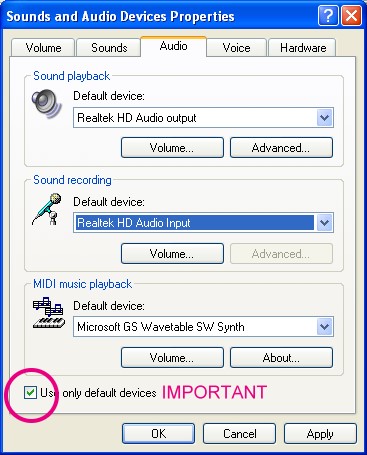
At this point you should not have a problem hearing the audio in the room.
If you have never used a microphone on your computer you may initially have a problem using the microphone. This is typically a setup issue. If you do have a issue first use a recording application and make sure you can record from there. Windows has a program called Sound Recorder you can use for this.
Test again with the Sound Recorder. If successful it should work in the room. Log Into the conference and test.
IF you are unable to use the microphone, you can still participate fully and use the text chat to comments and ask questions.
This particular issue is not to do with initially logging into a room but it is a issue you may see when you are using the conference room.
Other users will see a red X beside your name and your audio will not be heard. You do not see any problem at your end. What this situation is saying that the web conference software running on your computer is unable to communicate with the software running on the server. This is a local problem and can be caused by several things. One possibility is for another application running on you computer to be using resources needed by the web conference software. This software could be malware, download a large file etcetera. Another possible issue is the Internet itself - either between you and your Internet Provider or with your path through the Internet. The solution is to first ensure you computer is completely clean - no viruses or other malware. You should also ensure there are no other application running that would interfere with the web conference software. You may need to contact your Internet Provider to see if they are aware of any Internet issues.
This issue is not particularly a problem if the interruption is momentarily - typical Internet behavior. If this happens frequently or if happen for long periods it should be investigated.
This is usually due to an Internet connection issue, the Red X described above being an example. It is caused when the user releases the microphone but the server hasn’t received that notification. To fix this problem right click beside any participant and click Clear All Users.